What it is, and what you need to run it
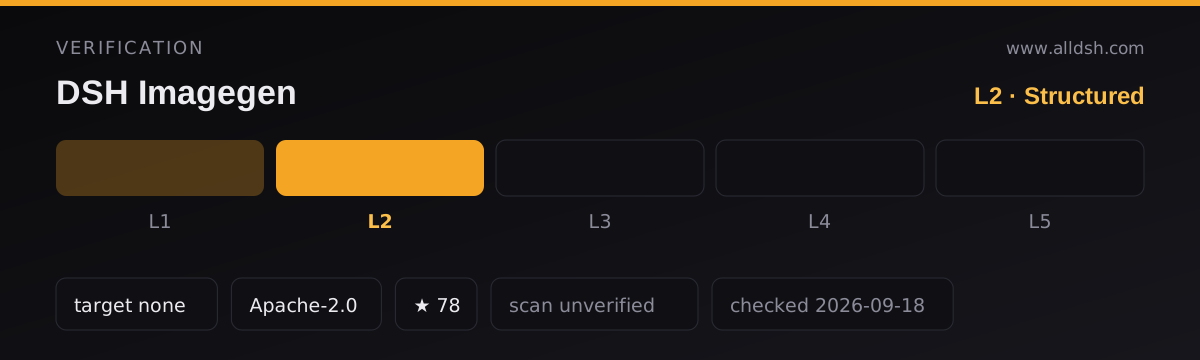
dsh-imagegen is an AI image workbench that mounts inside the DeepSeek Harness web GUI rather than beside it. On npm it is @dickpy/dsh-imagegen, version 1.5.12, licensed Apache-2.0, developed at github.com/dickpy/dsh-imagegen. The published package ships compiled lib/, src/, cordis.patch.yml, docs/ and README.md.
Its manifest tells the harness what to mount. dsh.bundle.patch points at ./cordis.patch.yml, and dsh.client declares platform: web plus eight injected DSH client packages — store, api-remotes, api-session-controller, client-connection, ui-conversation, ui-renderer, ui-settings and ui-tool. Only two packages are installed as runtime dependencies: lucide-react and schemastery. Everything in both sources describes a web-GUI plugin; no CLI, TUI or headless-only surface is mentioned.
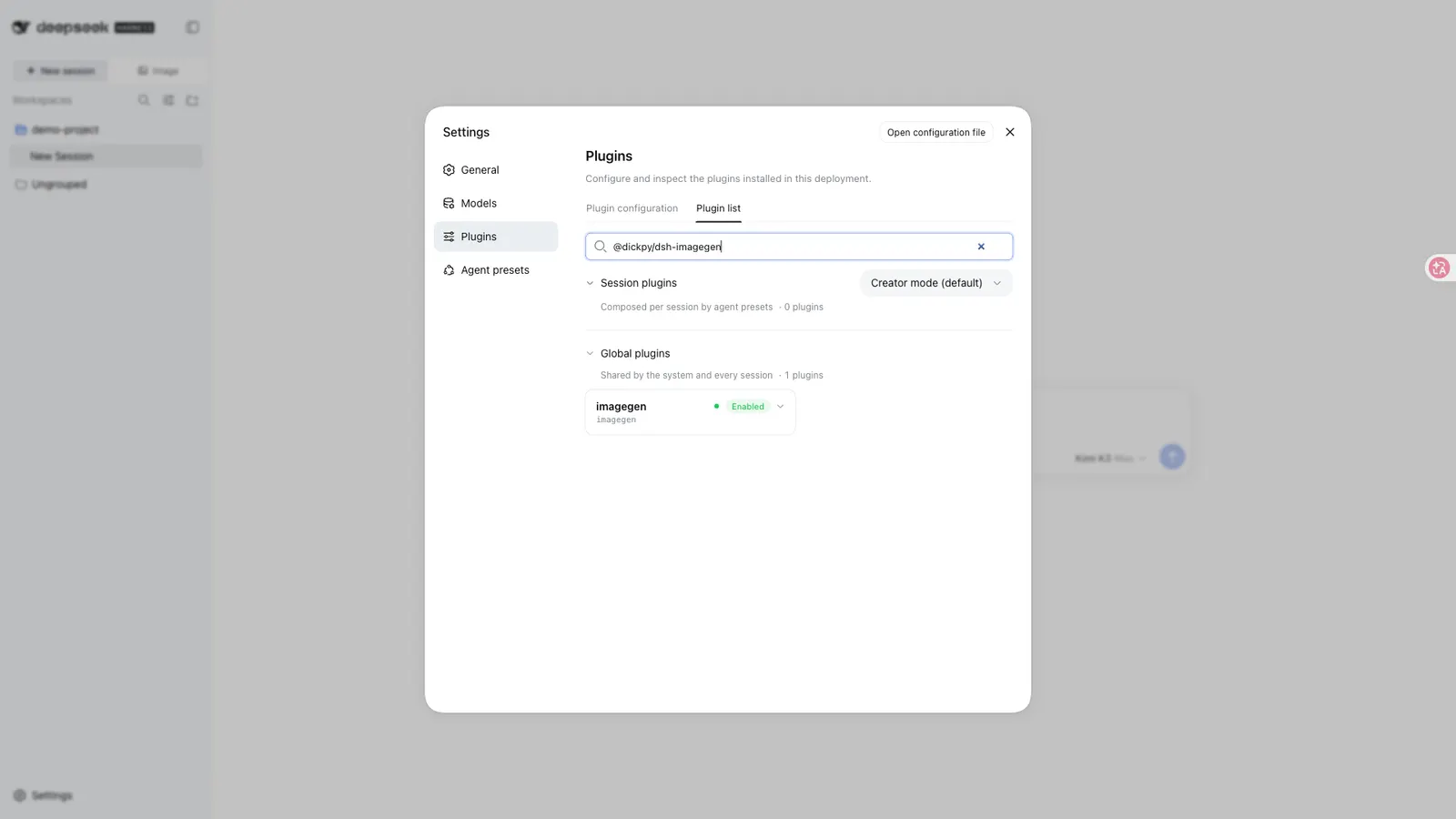
Identity is worth one warning: the settings page labels this plugin VisioWork(dsh-imagegen), and one later README section refers to the same area as “设置 → 插件 → AI 生图”. Look for those labels, not the npm name.
Running it asks for little. The README lists two prerequisites: DeepSeek Harness already installed, and Node.js 20+. That Node number comes from the README only — package.json declares no engines field at all. Neither source states a minimum harness version. Installation uses the harness’s own plugin-add command against the web profile, after which dsh web must be restarted; the README notes that a Windows PowerShell script-policy restriction may require dsh.cmd. Beyond that you need outbound network access from the host to whichever provider you configure, and local disk for a data directory that defaults to ~/.dsh/dsh-imagegen.
What it does
Several surfaces share one plugin:
- A three-column studio beside the normal conversation — history | generation area | AI chat. It covers text-to-image from a single prompt and image-to-image from a reference image, with 9 aspect ratios (1:1 through 21:9), four quality tiers (auto / 1K / 2K / 4K), 1–4 images per run, and passthrough of a detail setting. Jobs are queued by the host process, cancellable from a task tray, retryable on failure, and they do not block the panel or the conversation.
- An infinite canvas that turns generation into a node graph: text, image and generation-config nodes wired by dragging between connector dots. A config node reports “已连接 N 个输入节点” and reads a connected text node as the prompt and a connected image node as the reference (the first one becomes the image-to-image base). Image-node tools include annotation (draw a box, attach a prompt card; the box and its coordinates are burnt into the reference while the finished image is composited with the clean original, so the red box never appears in the output and pixels outside the box are guaranteed to match), local background removal (a transparent PNG the README says does not spend quota), AI layer split (a vision chat model divides an image into background / element / text layer nodes), and a per-node model choice. Thirteen canvas backgrounds, a minimap, undo/redo, multi-select, copy/paste/duplicate and multi-window editing with conflict retry-merge are described. Canvases are saved per project under
~/.dsh/dsh-imagegen/canvas, and older canvas data is migrated automatically. - File nodes that accept any file up to 50 MB, content-addressed by sha256 on the host, with browser-side and host-side previews and rejections detailed among the limits below.
- An ecommerce mode that expands one product photo into a set — main image, selling-point, scene, detail, spec and usage shots in whatever combination you enable — with a main-image-first anchoring pass so the rest of the set keeps the same product, nine built-in copy languages plus custom language and region text, per-purpose reference overrides, JSON manifest export, and project-folded history you can restore across sessions. The README marks this mode as a preview feature carrying a “预览” badge.
- A gallery and template library: gallery items can go straight back into the conversation for a
/edit_imagepass, and the plugin bundles 980-oddgpt-image-2prompt cases from two sources (a vibeui.top mirror and gpt-image2.canghe.ai), each with a reference image, author credit and original link. - Agent-facing tools, when the “allow Agent to call image generation” switch is on (it is on by default):
generate_image,edit_image,get_image_generation_taskandcancel_image_generation_task. With several image models configured the Agent asks which one to use rather than picking silently; with no address, key or model configured it points you to the settings card instead of failing quietly. Prompt enhancement — expanding a short idea into a fuller prompt through a chat model — is optional and can reuse the image API credentials.
Image providers: what works, and what you must supply
This is the part to read before installing, because the plugin contains no image model and no API key of its own. Both sources describe a client that talks to providers you configure; neither mentions a bundled key, trial credit, free tier or bundled weights. Every generated image is produced by an upstream account you own and pay for.
Providers are configured in DSH Settings → Plugins → VisioWork(dsh-imagegen). Each provider carries its own API address, key and model catalogue, and you can configure several at once. Per the README’s configuration table, what you supply is:
- Provider — pick a preset or add a custom channel.
- API address — an OpenAI-compatible root such as
https://api.openai.com/v1; the plugin appends the image endpoint path itself. - API key — per provider; stored on the DSH host side, and the README says neither the browser nor the Agent can read the plaintext.
- Model catalogue — after saving address and key, “detect available models” filters out chat and embedding models. Gateways without a
/modelsendpoint can be filled in by hand with aliases. - Prompt-enhancement model — optional; needs
/chat/completions; can usually reuse the image credentials. The ecommerce mode’s “AI 帮写” uses the same model. - Local image storage directory — optional root for history, asset library and canvas images; blank means
~/.dsh/dsh-imagegen. - Allow Agent to call image generation — on by default.
The preset channels the README names are OpenAI, Zhipu (GLM), xAI, ByteDance Volcengine Ark (Seedream), Aliyun Bailian (Qwen-Image) and MiniMax (image-01). Presets fill in endpoints and catalogues; they do not remove the need for your own key.
Protocol support is wider than the phrase “OpenAI-compatible” suggests:
- OpenAI-compatible gateways through
/images/generationsand/images/edits, with{ data: [{ b64_json | url }] }responses. - Two-step asynchronous gateways (the README names apimart.ai and apib.ai): when
/images/generationsanswers{ data: [{ status, task_id }] }, the plugin pollsGET /v1/tasks/{task_id}with exponential backoff for up to 240 seconds, understands submitted / pending / processing and completed / succeeded, passes upstream failure reasons through, and stops polling when you cancel. - Grok Imagine —
grok-imagine-imageandgrok-imagine-image-2.0athttps://api.x.ai/v1, using its JSONimage_urledit protocol, with ratio and clarity mapped toaspect_ratioandresolution. - Nano Banana (Google Gemini image family) —
nanobanana2,nanobanana2-lite,nanobanana-pro, and officialgemini-3.x-image*IDs, with clarity mapped toimage_size(1K/2K/4K). - Seedream —
seedream-5.0-pro, alsoseedream-4.xanddoubao-seedream-…; both directions go through/images/generations, with references sent as a JSONimagearray. - Qwen-Image — Aliyun Bailian, using DashScope’s native
multimodal-generationendpoint athttps://dashscope.aliyuncs.com/api/v1. The README states explicitly that this channel is not an OpenAI-compatible interface and cannot be reused for prompt enhancement. - MiniMax image-01 — the native
/image_generationendpoint athttps://api.minimax.io/v1(mainland China:https://api.minimaxi.com/v1), also explicitly not OpenAI-compatible. Ratios are 1:1 / 16:9 / 4:3 / 3:2 / 2:3 / 3:4 / 9:16 / 21:9, up to 9 images per call, and image-to-image sends one reference assubject_reference— the README calls it a subject-consistency reference rather than pixel-level editing, suited to “same person, new scene” and not to local retouching. MiniMax’s/modelslists only chat models, so use the prefilled catalogue. - Zhipu GLM-Image —
glm-image, quality mapped tohd, and no image-to-image: it is excluded automatically when you choose an edit model.
Unrecognised OpenAI-compatible models can be added by hand and tried through the generic protocol. The README adds that vendor-specific authentication or request protocols “需要单独适配” — that is, they are not supported without separate adaptation. Model detection reads upstream capability fields plus naming heuristics (image / flux / seedream / nanobanana / kolors…), yet the README still advises ticking only the models your upstream really supports for generation.
How generation works, and what “shared history” means
In the studio a run is: type a prompt — or upload or drag a reference image of up to 10 MB, or pull one from a result card, the full-screen preview, history or the gallery — choose model, ratio, clarity and 1–4 copies, submit to the host queue, then watch it in the task tray. Results open in a full-screen preview with 0.5–3x zoom, arrow-key paging, prompt copy, download, “add to conversation” and “add to gallery”.
History keeps the prompt, model and parameters for the most recent 50 entries, filterable by keyword, model and ratio, and clicking an entry restores its parameters. Two routes continue an edit without re-uploading: tell the Agent in conversation (which goes through the chat model as edit_image, so it can interpret vague intent), or type /edit_image … (which calls the configured image model directly, so it still works when your chat model cannot accept images). With several models configured, “multi-model comparison” submits the same prompt and parameters to the chosen models in parallel on the same queue and shows the results side by side; those history entries collapse into one group.
“Shared history” deserves a precise reading. The README says channel configuration, history and gallery data are saved by the DSH host, so a normal upgrade does not wipe them, and that gallery favourites are visible across browsers and devices on the same host, with identical image content de-duplicated by hash. That is host-local sharing: several browsers or devices pointed at one DSH host see the same library. No account, cloud sync or cross-host sharing is described anywhere in either source, so “shared” should not be read as a cloud library.
Where images are stored, who receives them, and what they cost
Storage. History, gallery and image data live under the host data directory, default ~/.dsh/dsh-imagegen/, with canvases in ~/.dsh/dsh-imagegen/canvas and heavy canvas-skill runs defaulting to a canvas/runs subdirectory. The image storage root is configurable; the README says new images then go to the new directory and existing data is not deleted. Note that this is the host’s data directory, not the agent workspace — worth checking if you assume generated assets land next to your project. Canvas file-node uploads (≤50 MB each) are content-addressed in the same data directory.
Retention. Neither source states a retention period, an expiry, an automatic cleanup or a size ceiling for that directory, and nothing is said about what happens as the 50-entry history window rolls over. Assume nothing about deletion; the plugin’s stated position is that the data is “由你控制” — under your control.
Who receives the data. Image and chat requests are proxied by the DSH host process: the browser never talks to the upstream provider directly, which is why there are no CORS problems and no key in the frontend, and the host route listens only on the loopback address and validates same-origin requests. Keys are saved in local DSH settings, and the settings page shows only a “configured” state.
From there, prompts and images go to third parties: the provider channel you configured (for example OpenAI, Zhipu, xAI, Volcengine Ark, Aliyun Bailian, MiniMax or a custom gateway), which is where the image is produced. Image-to-image sends the reference image to that channel’s upstream API, and the README warns you to check the provider’s data-processing policy and not to upload sensitive images. Three further outbound paths exist: the template library’s display images are fetched through the host’s same-origin proxy from the vibeui.top mirror and gpt-image2.canghe.ai and then cached, with an automatic sync every 12 hours; canvas skills send the selected node’s content (text, image or file) to the prompt-enhancement chat model; and heavy skills start a headless DSH Agent with local file read/write and command execution, injecting the chosen skill’s body into its context. The README also says the panel detects new versions when opened and offers an in-panel update, without stating which endpoint it checks. No telemetry, analytics or account system is mentioned anywhere in either source — and none is denied either.
Cost. The plugin itself carries no stated price. What the source does say about money is that generation “生图会消耗上游 API 额度” — it consumes the upstream account’s quota, meaning whatever you pay that provider. The README quotes no rates, limits or free allowances, and it never claims any provider is free. Two things are called out as not spending quota: local background removal (“不消耗额度”) and generating a set preview before committing to a batch (“不浪费额度”). The ecommerce mode’s consumption is stated to match ordinary generation, and heavy canvas skills show a cost hint in their confirmation dialog. Prompt enhancement and heavy skills consume usage on the configured chat model.
Known limits and what it explicitly does not do
Straight from the sources:
- Ecommerce mode is preview software — “电商模式目前为预览功能,入口带有「预览」角标”; it still bills against the configured channel and queue.
- GLM-Image has no image-to-image — “当前不支持图生图”.
- MiniMax image-to-image is not local retouching — the reference is a subject-consistency input: “适合「同一人物换场景」,不适合局部修图”.
- Qwen’s DashScope channel cannot drive prompt enhancement — “该渠道不能复用于提示词增强”; MiniMax cannot either, and its
/modelsendpoint returns only chat models. - Vendor-specific protocols are not generic — unrecognised OpenAI-compatible models can be added manually, but “厂商专属鉴权或请求协议需要单独适配”.
- Model detection is heuristic — it reads capability fields and name patterns, and the README still tells you to tick only what the upstream really supports.
- Timeouts are capped: asynchronous gateway polling stops at 240 seconds, and the
generate_imagetool waits up to 300 seconds before auto-cancelling. - Size and count limits: file node 50 MB; skill zip upload 50 MB; image-to-image reference 10 MB; text / code / JSON / YAML / XML preview 120,000 characters; CSV / TSV / XLSX preview 300 rows × 40 columns; ZIP listing 400 entries; batch canvas skills cover at most 12 input nodes; history keeps 50 entries.
- Script and executable extensions are refused —
.exe / .bat / .ps1 / .js / .html / .svgand similar are rejected by both the browser and the host; everything outside the previewable types is returned asapplication/octet-streamwith an attachment disposition, and HTML/SVG markup is never inlined. - PDF extraction depends on FlateDecode text streams — scanned documents need a separate OCR skill.
- Output is not vetted — “图片内容由上游模型生成,可能出现不准确、不适宜或不符合预期的结果,请在使用前人工检查”. The plugin states no content filter, moderation policy or review process of its own; the caveat is that you inspect results and check the provider’s data policy.
- The PPT skill is not included —
image-to-editable-pptis a long-running skill you must install yourself, and third-party skills like it manage their own credentials (OCR token, image backend), which this plugin does not read or upload. - Unstated prerequisites stay unstated: no
enginesfield, no harness floor, no retention policy, no OS support statement beyond the Windowsdsh.cmdnote, and no telemetry statement.
When to use it — and when not to
Use it if you already have an image provider account and you want generation, editing, iteration and asset management inside the same window as your DSH conversation. The host-side queue means long jobs do not freeze the UI, and the /edit_image path genuinely removes re-uploading between rounds. The node canvas and the gallery go beyond a thin wrapper around an image API, and the local background-removal path the README says spends no quota is worth having on its own.
Do not reach for it if any of the following is what you assumed:
- If you want offline or fully local generation, this is the wrong tool: there is no bundled model, and every image is produced by a remote provider you configure.
- If you have no API key, installing gets you an empty workbench rather than a working generator. The Agent is written to point you at settings instead of inventing a fallback.
- If you need a contractual answer about retention or data residency, the sources do not give one. You control the directory; you are not promised deletion.
- If you need local pixel-level retouching through MiniMax, or image-to-image through GLM-Image, the source rules those out.
- If you are not on the web profile, nothing described here applies. And if you need a fixed version, the README points at pinning the package version or a release tarball, since the panel also self-detects newer versions.
FAQ
Does the plugin include an image model, a free quota or an API key?
No. Neither source mentions a bundled key, trial credit, free tier or bundled weights. Preset channels fill in endpoint addresses and model catalogues, but the API key is always yours, configured per provider, and the README states that generation consumes upstream API quota. Nothing in either source states that any provider is free.
Is my generation history synced to a cloud account?
No cloud account is described. Channel configuration, history and gallery data are saved by the DSH host, and gallery favourites are described as visible across browsers and devices on the same host. Cross-host or account-based syncing is not stated anywhere.
How long are generated images kept, and can I cap the storage?
The storage location is configurable: the default root is ~/.dsh/dsh-imagegen, and changing it writes new images elsewhere without deleting existing data. Retention, expiry, automatic cleanup and a size ceiling are not stated in either source.
Where do my prompts and reference images go?
To the provider channel you configured, because the DSH host proxies the request to that upstream API; image-to-image sends the reference image along with it. The README warns you to check the provider’s data-processing policy and not to upload sensitive images. The template library additionally contacts two third-party prompt-library sites through the host’s same-origin proxy.
Can I point it at any OpenAI-compatible endpoint?
Mostly. /images/generations, /images/edits and the usual response shapes are supported, plus automatic polling for two-step asynchronous gateways. But two built-in channels are explicitly not OpenAI-compatible — Aliyun Bailian’s DashScope endpoint and MiniMax’s native image endpoint — and the README says vendor-specific authentication or request protocols need separate adaptation.